
Adding/Removing Members (For Small Group Leaders)
Follow these steps to add a new member to your Church Center database:
- Log In to Church Center: You can go to the web version (https://capitolhillbaptist.churchcenter.com/home) or download the app (https://churchcenter.com/setup).
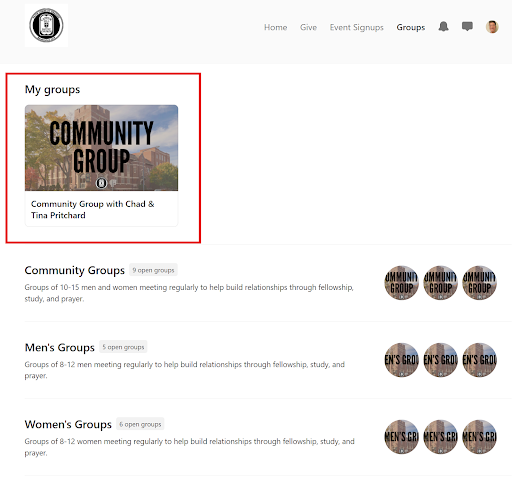
- Click on “Groups” and you’ll see your own group
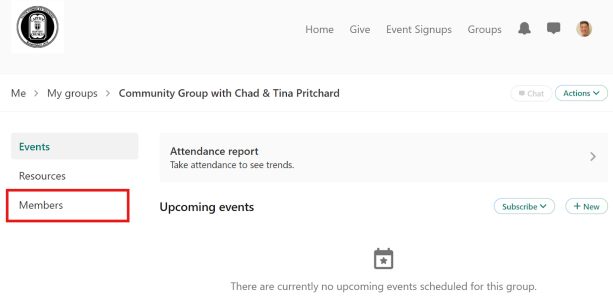
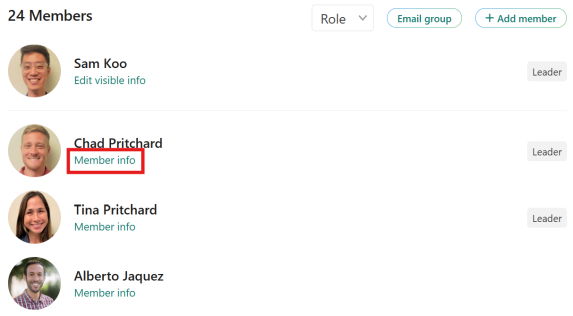
- Click on “Members”: On the left, click on the "Members" tab. This will take you to the list of members of your group.
- On this page, you can approve requests, add/remove members,
- You don’t need to check-in with the staff unless you want to. This step assumes that the staff member already checked their membership process.
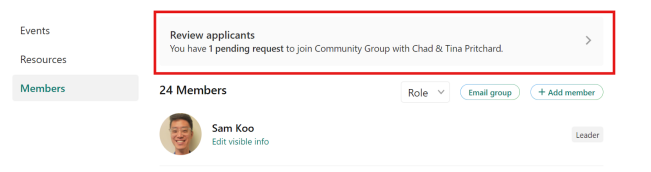
- If there is someone pending… You’ll see the request from the member to join your group on the top. You can click to approve.
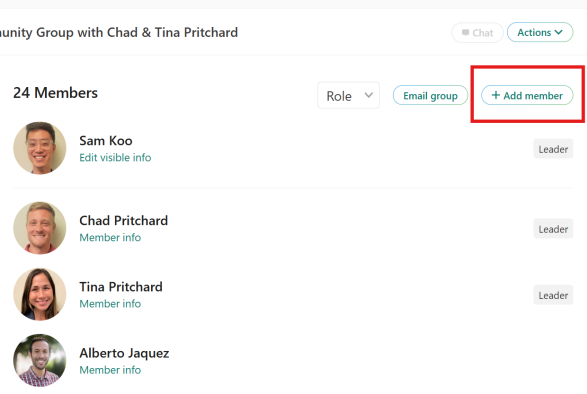
- If there is someone you want them to join… You can click “+ Add member” tab, and you can give them a URL or a QR code.
- If there is someone you need to remove… You can click “Member info” tab of the person and click the “remove” button.
*The staff can set a limit on the availability of your group based on the size. For example, you currently have 10 members and feel like you can have 5 more people. We can set an automation where additional 5 members can join and will automatically close for joining. Let us know if you want this function to be applied to your group.
For any further assistance, please contact Kevin Kim ( ) or Sam Koo ( ).